
If you're ready to take your art into the digital world, choosing the best drawing tablet for beginners is the single most important decision you'll make. The right tablet changes everything — the wrong one leads to frustration, RSI, and a very expensive paperweight.
The good news: the beginner drawing tablet market in 2026 is genuinely excellent. Brands like Wacom, XP-Pen, Huion, and UGEE have all produced entry-level tablets that would have been considered professional tools a decade ago. The bad news: the sheer number of options is overwhelming, and a lot of online “best of” lists are just affiliate-driven junk that recommends whatever pays the highest commission.
This guide is different. I've tested these tablets with real drawing workflows — sketching, inking, digital painting, and basic photo editing — and I'll tell you exactly what each one is good for, what its limitations are, and who should buy it.
Quick pick: For most beginners, the XP-Pen Deco 01 V3 offers the best combination of drawing area, pen quality, and price. If budget isn't a concern, the Wacom Intuos Medium is the gold standard.
What to Look for in a Beginner Drawing Tablet
Before comparing specific models, let's cover the features that actually matter for beginner artists. Understanding these will make the rest of this guide much clearer.
Pen Technology: Passive vs. Active
There are two main types of drawing tablet styluses. Passive (battery-free) pens use electromagnetic resonance — the tablet generates a field, the pen responds. These feel natural, never need charging, and are the industry standard for drawing tablets. Active (battery-powered) pens are cheaper to manufacture but need charging and can feel less responsive. For dedicated drawing, always choose a tablet with a passive, battery-free pen.
Pressure Sensitivity Levels
Modern drawing tablets offer 4,096 or 8,192 levels of pressure sensitivity. For beginners, 4,096 levels is more than sufficient — the difference between 4K and 8K pressure sensitivity is something you'll only notice after years of drawing. Don't let this spec drive your purchase.
Active Drawing Area
This is the actual working surface of the tablet. Bigger isn't always better — a medium tablet (about 8×5 inches) is ideal for most beginners. Too small and your arm movements feel cramped; too large and you'll exhaust your arm moving across the surface. The sweet spot for desk use is roughly 6×4 to 10×6 inches.
Screen vs. Screenless Tablets
Most beginner tablets are screenless — you draw on a surface while watching a separate monitor. This is the best type for learning because it's far cheaper, more durable, and actually develops better hand-eye coordination. Pen displays (with built-in screens) are intuitive but cost 3–5× more for the same drawing quality. Start screenless; upgrade later if you need it.
Tilt Recognition
Tilt recognition lets the tablet detect the angle of your pen, allowing you to shade like a real pencil. It's a nice feature for certain styles (charcoal-like work, impressionistic painting), but not essential for beginners.
Compatibility
Ensure the tablet works with your operating system (Windows, macOS, Linux) and your preferred software (Clip Studio Paint, Procreate for iPad, Photoshop, Krita). Most major brands support all platforms, but always verify before buying.
Best Drawing Tablets for Beginners: My Top Picks
1. XP-Pen Deco 01 V3 — Best Overall for Beginners
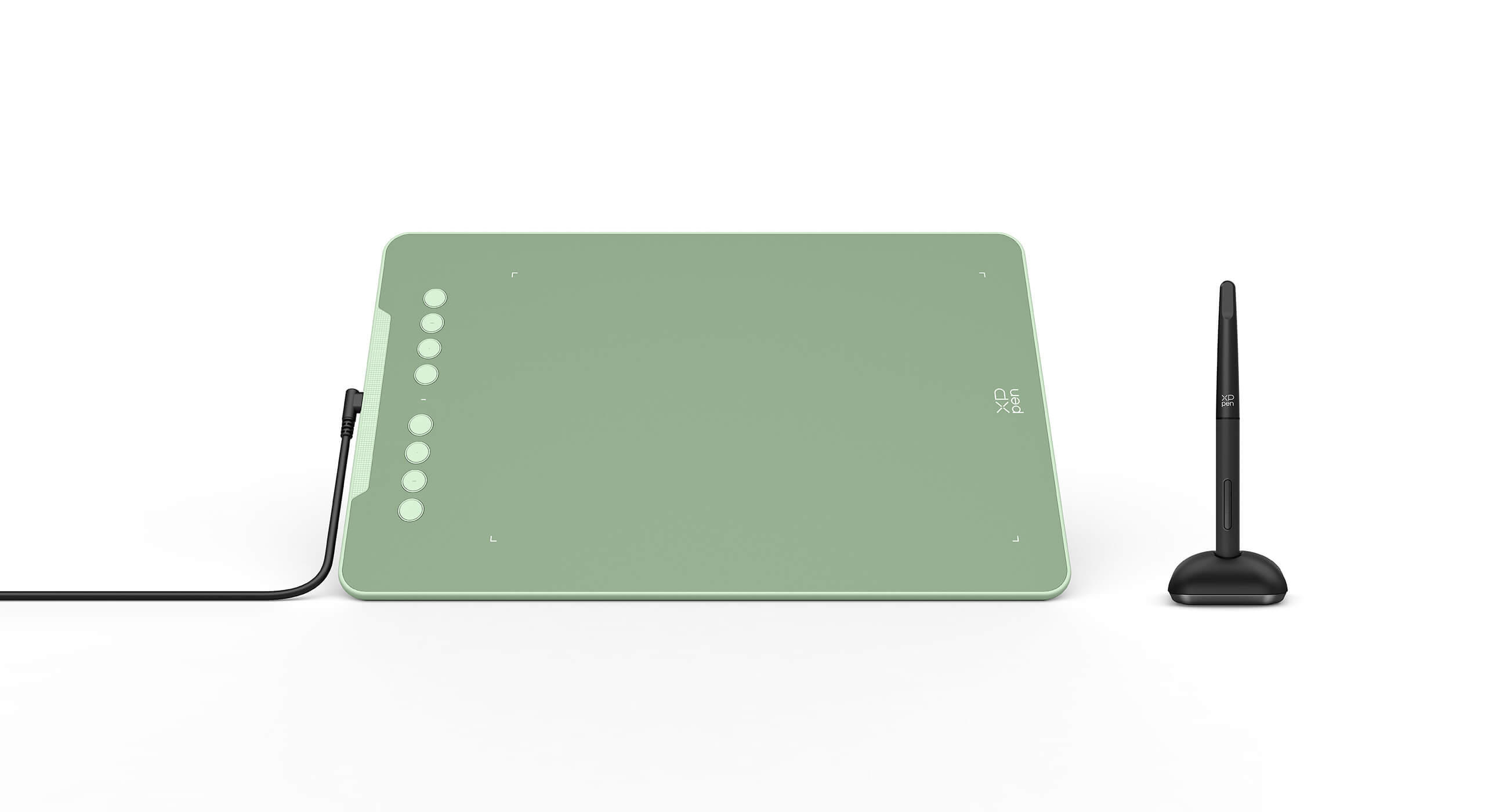
The XP-Pen Deco 01 V3 is what I recommend to almost every beginner who asks me what tablet to buy. It offers a large 10×6.25-inch active area (plenty of room to work), 8,192 levels of pressure, a battery-free stylus, and excellent driver software — all at a beginner-friendly price point.
The pen feel is remarkably similar to the Wacom Intuos at a fraction of the cost. The surface has a subtle texture that mimics paper drag, which makes the learning curve from traditional to digital drawing much gentler.
Pros:
- Large 10×6.25-inch active area — plenty of room to sketch freely
- 8,192 levels of pressure sensitivity and 60-degree tilt recognition
- Battery-free, rechargeable stylus
- Compatible with Windows, macOS, and Android
- Excellent value — performs well above its price bracket
Cons:
- Driver installation can be slightly finicky on macOS
- The large size may feel overwhelming for desk-limited setups
Best for: Beginners who want a serious drawing experience without the Wacom price tag. Ideal for digital illustration, sketching, and casual painting.
2. Wacom Intuos Small — Best Entry-Level Wacom
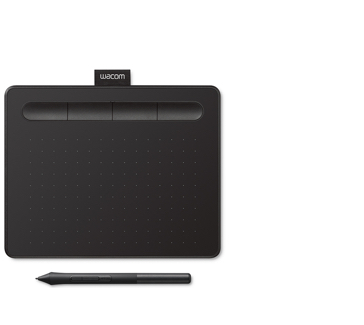
Wacom has been making drawing tablets since 1983, and the Intuos Small is their entry-level offering. It's smaller than the Deco 01 (active area: 6×3.7 inches), but the pen quality is exceptional — Wacom's EMR (Electromagnetic Resonance) technology sets the industry standard. You also get a free software bundle that includes Clip Studio Paint and Corel Painter, which alone is worth a significant portion of the tablet's cost.
Pros:
- Industry-leading pen precision and feel — the Wacom standard
- Includes Bluetooth connectivity for wireless use
- Bundled software (Clip Studio Paint Pro, Corel Painter Essentials)
- Extremely reliable — minimal driver issues
- 4 customizable express keys
Cons:
- Smaller active area (6×3.7 inches) — can feel cramped for large gestures
- 4,096 pressure levels (vs. 8,192 on competitors) — not a real limitation for beginners
- More expensive per square inch than competitors
Best for: Beginners who want the reliability and ecosystem of Wacom, or those working on a smaller desk. Also a great choice if you plan to use Clip Studio Paint.
3. Wacom Intuos Medium — Best Mid-Range Upgrade
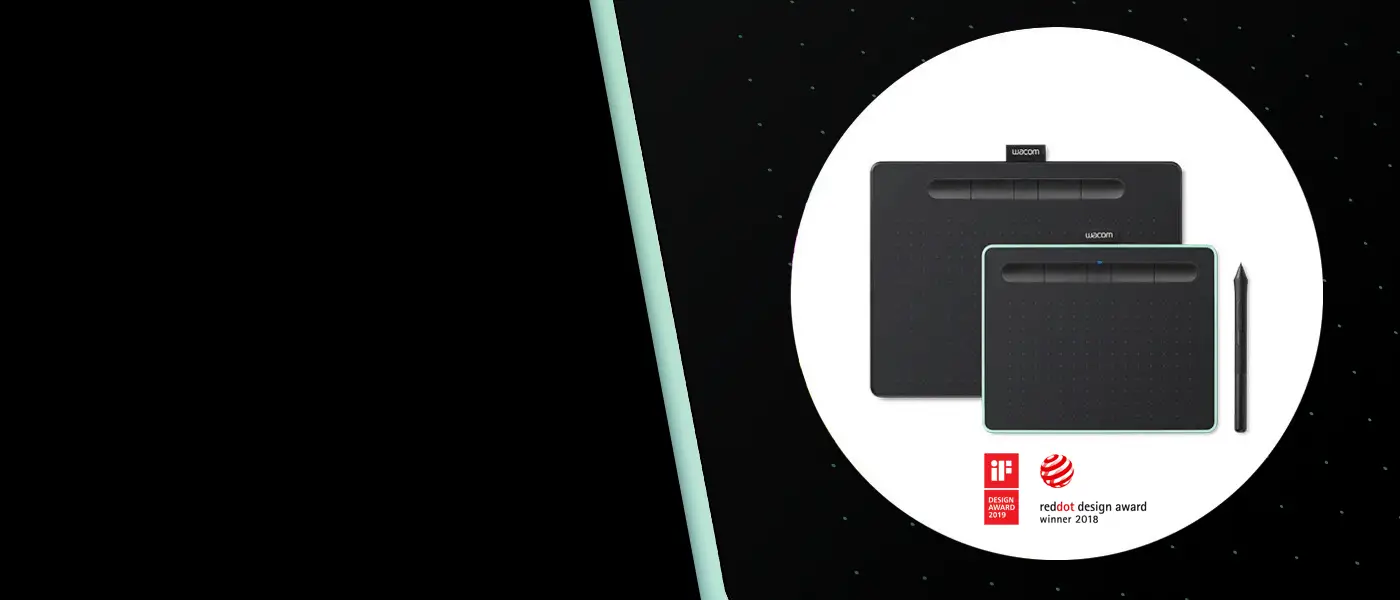
If you can stretch the budget, the Wacom Intuos Medium is the gold standard beginner-to-intermediate tablet. The active area (8.5×5.3 inches) hits the sweet spot — large enough for expressive gestures, not so large that it exhausts your arm. The pen quality is the same Wacom excellence, and the software bundle is identical to the Small.
Pros:
- Perfect active area size for most workflows
- Wacom's industry-leading pen precision
- Wireless Bluetooth connectivity
- Full software bundle included
- Durable build quality — will last years
Cons:
- Pricier than Chinese-brand alternatives of similar or larger size
- 4,096 pressure sensitivity (not a real limitation for most artists)
Best for: Serious beginners who want a tablet that will take them through intermediate work without needing an upgrade. The “buy once, buy right” option.
4. Huion Inspiroy H610 Pro V2 — Best Large Budget Tablet
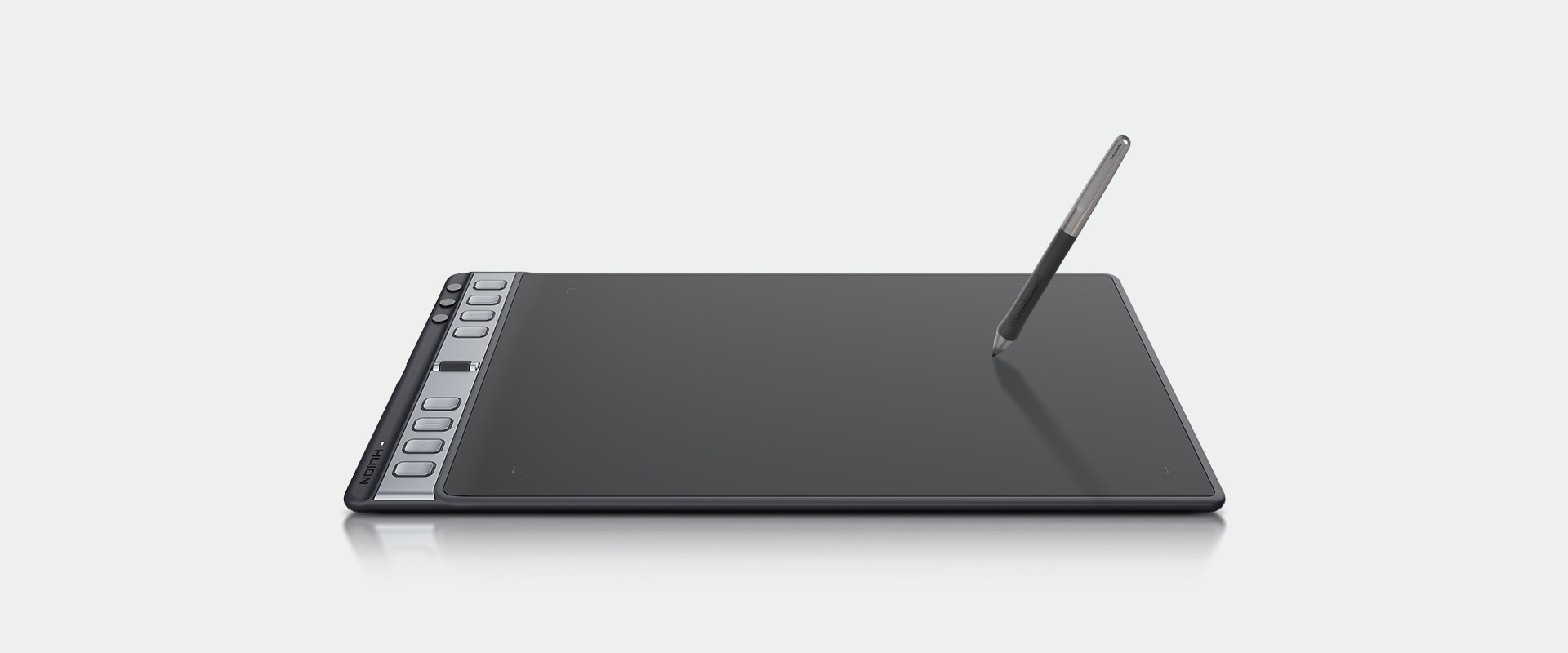
Huion's H610 Pro V2 offers a generous 10×6.25-inch active area with 8,192 pressure levels and tilt recognition at a highly competitive price. Huion has significantly improved their driver software and pen reliability over the last two years — this is a legitimate professional-level experience at a budget price.
Pros:
- Large active drawing area — great for big, gestural strokes
- 8,192 pressure levels and 60-degree tilt support
- Battery-free pen with excellent tip response
- 8 customizable express keys and 16 soft keys
- Great value for the drawing area you get
Cons:
- No wireless connectivity (USB only)
- Drivers have occasionally been reported as less stable than Wacom
- Surface texture wears down faster than premium tablets
Best for: Beginners who prioritize drawing area size and don't need wireless connectivity.
5. XP-Pen Star G960 — Best for Larger Hands and Gestures

The XP-Pen Star G960 is designed for artists who find medium tablets cramped. With a 9×6 active area and 8,192 pressure levels, it bridges the gap between mid-size and large tablets at a reasonable price. The pen tilt recognition is smooth and the driver is one of XP-Pen's most stable releases.
Pros:
- Large, comfortable 9×6-inch active area
- 8,192 levels of pressure and tilt support
- Battery-free pen with solid tracking
- Ideal for full arm movements and expressive gestural drawing
Cons:
- Takes up significant desk space
- No wireless connectivity
Best for: Beginners with larger desks who prioritize drawing area above all else.
6. XP-Pen Star G640 — Best Ultra-Budget Option
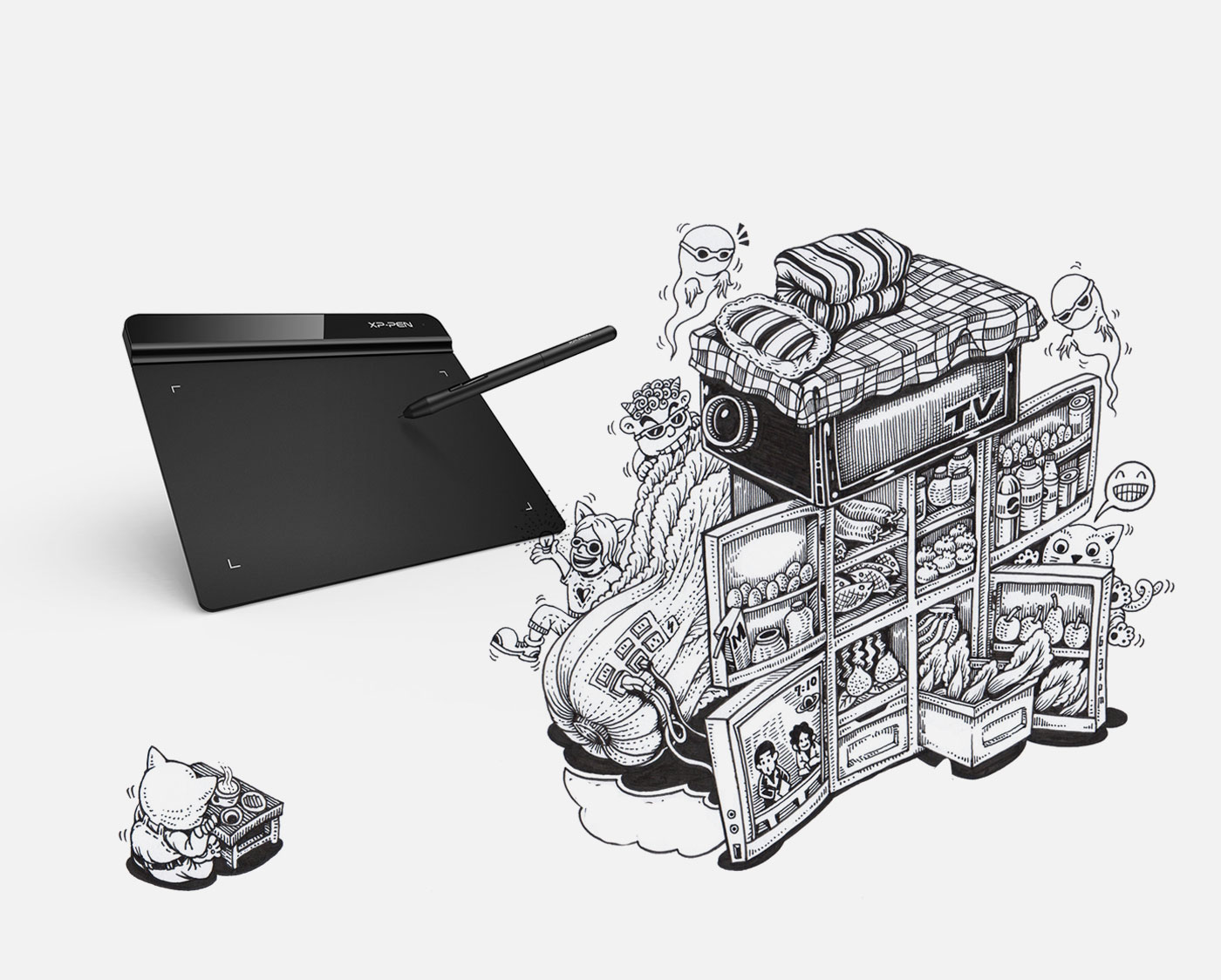
The XP-Pen Star G640 is a compact, lightweight tablet designed for beginners on a tight budget. The active area is small (6×4 inches), but the pen quality is surprisingly good for the price. It's also popular with OSU! players and photo editors as a mouse replacement, which speaks to its accuracy and reliability.
Pros:
- Very affordable entry point
- Compact and lightweight — great for travel or limited desk space
- Solid pen accuracy for the price
- Plug-and-play with most systems — minimal driver setup
Cons:
- Small active area (6×4 inches) can feel limiting for complex illustrations
- No express keys
- Basic feature set — no tilt recognition on all versions
Best for: Absolute beginners testing the waters before investing in a full setup, or travelers who need an ultra-portable option.
6. UGEE M708 — Best Hidden Gem
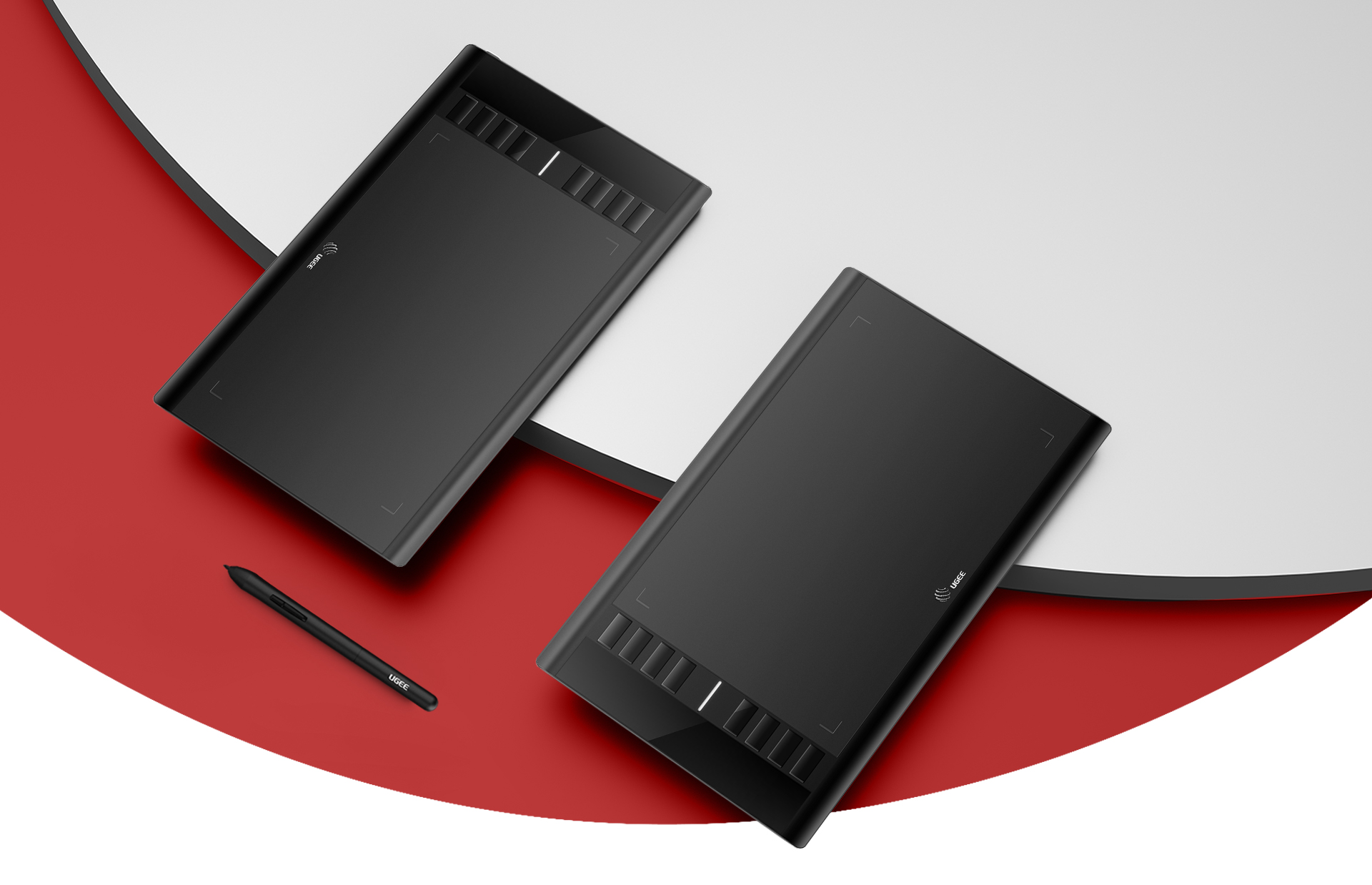
UGEE is the lesser-known brand on this list, but the M708 is a genuinely impressive value proposition. It offers a large 10×6-inch active area with 8,192 pressure levels and a battery-free pen — specs that compete directly with the XP-Pen Deco 01 and Huion H610 at a similar or lower price point. Their driver software has matured considerably and works well on Windows and macOS.
Pros:
- Large active area at a competitive price
- 8,192 pressure sensitivity with battery-free pen
- 8 programmable express keys
- Works well with all major drawing apps
- Good build quality for the price
Cons:
- Smaller brand means less community support and fewer tutorials
- Driver updates less frequent than Wacom/XP-Pen/Huion
Best for: Budget-conscious beginners looking for a large drawing area who don't mind going with a less-established brand.
7. Huion Kamvas 13 (Pen Display) — Best Screen Tablet for Beginners
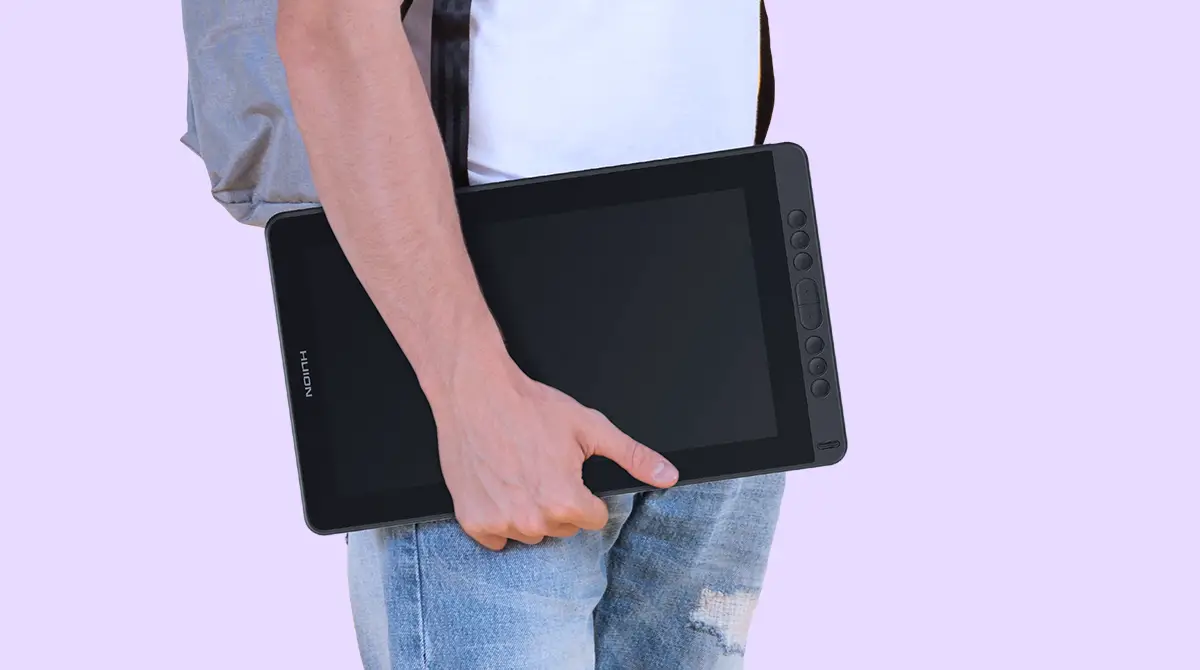
If you have a bigger budget and want the pen-on-screen experience from day one, the Huion Kamvas 13 is the best value pen display for beginners. The 13.3-inch full-HD screen is bright and accurate, the pen is excellent, and it comes in significantly cheaper than Wacom's equivalent Cintiq 16.
Note: Pen displays require a more powerful computer than screenless tablets. Make sure your machine can handle it before buying.
Pros:
- Draw directly on screen — the most intuitive beginner experience
- 13.3-inch full-HD display (1920×1080, 120% sRGB coverage)
- 8,192 pressure levels, battery-free pen
- Good color accuracy for illustration work
Cons:
- Requires a capable PC/Mac — not suitable for older hardware
- Significantly more expensive than screenless alternatives
- Parallax (gap between pen tip and cursor) takes adjustment
- Screen glare can be an issue without a matte screen protector
Best for: Beginners with a higher budget who find the hand-eye disconnect of screenless tablets frustrating. Also great for those who do a lot of tracing or reference work.
8. iPad + Apple Pencil — Best for iOS Artists
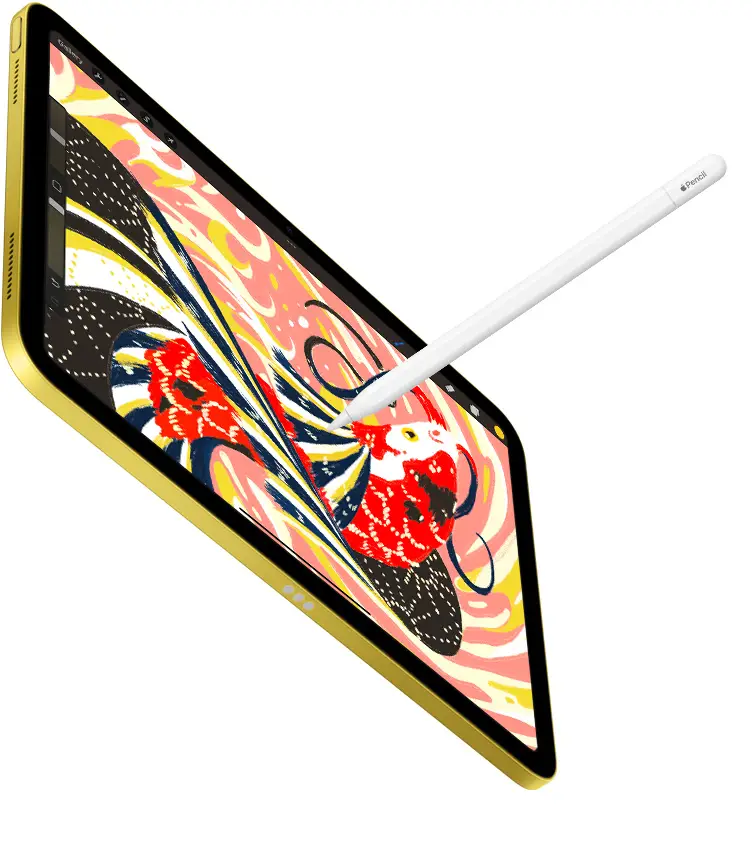
If you're primarily an iOS user, the iPad + Apple Pencil combination is in a class of its own. Procreate (the dominant iPad drawing app) is exceptional software, and the Apple Pencil 2's tilt and pressure sensitivity is class-leading. The all-in-one form factor (screen + drawing surface, no separate computer needed for simple projects) makes it the most portable option by far.
Pros:
- Procreate is genuinely world-class software for illustration
- Draw directly on screen — supremely intuitive
- Completely portable — no desk or separate monitor needed
- Apple Pencil has industry-leading feel and responsiveness
Cons:
- Most expensive option — iPad + Apple Pencil together cost significantly more than any tablet on this list
- iOS/iPadOS only — limited to Apple ecosystem
- Not ideal for complex multi-layer professional workflows
- Software limitations compared to desktop apps like Photoshop or Clip Studio
Best for: Artists who want a self-contained, portable drawing device and are already in the Apple ecosystem.
Drawing Tablet Comparison Table
| Tablet | Active Area | Pressure | Screen? | Price Range | Best For |
|---|---|---|---|---|---|
| XP-Pen Deco 01 V3 | 10×6.25″ | 8,192 | No | $$ | Best overall |
| Wacom Intuos Small | 6×3.7″ | 4,096 | No | $$ | Reliability + software bundle |
| Wacom Intuos Medium | 8.5×5.3″ | 4,096 | No | $$$ | Buy-once upgrade option |
| Huion H610 Pro V2 | 10×6.25″ | 8,192 | No | $$ | Large area on a budget |
| XP-Pen Star G640 | 6×4″ | 8,192 | No | $ | Ultra-budget / travel |
| UGEE M708 | 10×6″ | 8,192 | No | $$ | Value large-area option |
| Huion Kamvas 13 | 13.3″ screen | 8,192 | Yes | $$$$ | Pen display on a budget |
| iPad + Apple Pencil | Varies | High | Yes | $$$$$ | iOS artists / portability |
$ = under $40 | $$ = $40–80 | $$$ = $80–120 | $$$$ = $120–250 | $$$$$ = $250+
Budget vs. Premium: Which Should You Choose?
The Budget Argument ($30–$80)
If you're completely new to digital art and aren't sure you'll stick with it, starting with a budget tablet makes a lot of sense. The XP-Pen Star G640 or UGEE M708 will give you a genuine digital drawing experience without a significant financial commitment. If you discover you love it, you can upgrade with confidence knowing exactly what you want from a better tablet.
The Mid-Range Sweet Spot ($60–$100)
This is where the best value lives. Tablets like the XP-Pen Deco 01 V3 and Huion H610 Pro V2 offer specs that rival tablets costing twice as much. For most beginners, a mid-range tablet will serve them well through their entire beginner phase and well into intermediate work.
The Premium Argument ($100–$200)
The case for the Wacom Intuos (Small or Medium) comes down to reliability, ecosystem, and software. Wacom's drivers are the most stable in the industry, their pens last years with minimal maintenance, and the bundled software (Clip Studio Paint Pro alone retails for $50+) partly offsets the higher price. If you're serious about digital art as a long-term pursuit, the Wacom investment makes sense.
Setting Up Your Drawing Tablet: First Steps
Once your tablet arrives, the setup process is straightforward:
- Install drivers: Download the latest drivers from the manufacturer's website (not a third-party site). Restart your computer after installation.
- Map your drawing area: In the driver settings, map the tablet's active area to your monitor. For single-monitor setups, a 1:1 aspect ratio mapping feels most natural.
- Configure pen pressure: Most driver software lets you adjust the pressure curve. Set it so light touches produce light marks and firm presses produce dark ones — this should feel intuitive, like a real pencil.
- Set up express keys: Map your most-used shortcuts (undo, zoom, rotate canvas) to the tablet's hardware keys. This dramatically speeds up your workflow.
- Choose your software: Krita (free), Clip Studio Paint (paid, often bundled), and Procreate (iPad only) are the best starting points for beginners. See our guide to teaching yourself digital art for software recommendations.
Frequently Asked Questions
Do I need an expensive drawing tablet as a beginner?
No. The XP-Pen Star G640 at under $40 is a legitimate drawing tablet that can produce professional results in the right hands. Budget tablets are far more capable than they were even three years ago. The most expensive part of learning digital art is your time and practice — the tablet is almost secondary.
Is a screen tablet better than a screenless tablet for beginners?
Not necessarily. Screenless tablets develop better hand-eye coordination and are significantly cheaper for the same pen quality. Many professional illustrators use screenless tablets their entire careers. That said, if the hand-eye disconnect genuinely bothers you after a few weeks of practice, a pen display like the Huion Kamvas 13 is a reasonable upgrade.
What size drawing tablet should a beginner get?
A medium-sized tablet (8×5 to 10×6 inches) is ideal for most beginners. Small tablets can feel cramped for gestural drawing; large tablets require more arm movement and can cause fatigue. The “medium” range is where most professional artists work.
Can I use a drawing tablet without drawing software?
Yes — drawing tablets work as mouse replacements and function in any application. However, to use pressure sensitivity and tilt recognition (the features that make tablets useful for art), you'll need drawing software that supports these features. Krita is an excellent free option to start with.
Do drawing tablets work with Photoshop?
Yes. All major drawing tablets are compatible with Adobe Photoshop. Pressure sensitivity and tilt recognition work natively. Many professional photo retouchers and illustrators use tablets with Photoshop daily.
New to Adobe Photoshop? Start a free Adobe Creative Cloud trial — includes Photoshop, Illustrator, and Adobe Fresco (the best drawing app for tablets). Plans from $54.99/month.
Is a drawing tablet good for beginners learning traditional drawing techniques?
Drawing tablets are primarily digital tools — they're best suited for artists who want to work digitally. If you're learning the fundamentals of drawing (line, form, value, perspective), starting with traditional drawing pencils is often recommended before transitioning to digital. The fundamentals carry over; the tools are just different.
How long does a drawing tablet last?
A well-cared-for drawing tablet should last 5–10 years easily. The most common wear item is the pen nib (the tip), which can be replaced for a few dollars. Wacom tablets in particular are known for exceptional longevity — many artists are still using Intuos tablets from the early 2010s.
What's the difference between Wacom, XP-Pen, Huion, and UGEE?
Wacom is the industry pioneer and still widely considered the premium standard — their pens are the most refined, their drivers the most stable. XP-Pen, Huion, and UGEE are Chinese-manufactured competitors that have dramatically closed the quality gap in recent years. For beginners, the practical difference is minimal; for professional power users, Wacom still edges ahead on driver stability and long-term pen durability.
Once you're set up with a drawing tablet, the next step is building your digital effects library. Artixty offers a range of professional Photoshop actions and digital art bundles that help beginners achieve stunning results quickly — from sketch effects to watercolor painting simulations, all compatible with tablet-based workflows.
Final Thoughts
The best drawing tablet for beginners in 2026 is the one that gets you drawing consistently. For most people, that's the XP-Pen Deco 01 V3 — large drawing area, excellent pen, competitive price, and it'll last you through beginner work and well into intermediate. If you prefer the Wacom ecosystem, the Intuos Medium is worth the premium.
Whatever you choose: install the drivers, open a free app like Krita, and start drawing. A thousand hours of practice matters far more than which brand is printed on the side of your tablet. The best drawing tablet is the one in your hand.
If you're also just getting started with traditional drawing materials alongside your digital journey, check out our guide to the best drawing pencils for beginners — the two skills complement each other well.
Using your tablet for lettering and type work in Procreate? Lettering League’s guide to 5 ways to enhance your digital lettering in Procreate covers techniques that pair perfectly with a drawing tablet setup.
Ready to take your drawing to the next level? Subscribe to our newsletter for weekly tips on digital art, drawing techniques, and the best gear for artists at every level.